


The Invisible Privacy Leak
You paid for a VPN. You connected to a server in Switzerland. You checked your IP address and confirmed it changed. You’re anonymous now, right?
Wrong.
Every website you visit can still see your real IP address—the one assigned by your ISP, complete with your city, your internet provider, and sometimes your approximate street address. The culprit isn’t your VPN. It’s a browser feature called WebRTC, and it’s bleeding your identity across the internet right now.
What is WebRTC?
WebRTC (Web Real-Time Communication) is the technology that makes video calls work in your browser without downloading apps. Google Meet, Discord voice chat, Zoom web meetings—they all use WebRTC to connect you directly to other users. It’s built into Chrome, Firefox, Edge, and Safari.
The technology itself isn’t malicious. It’s incredibly useful for legitimate purposes. But it has a critical privacy flaw.
The STUN Request Problem
Here’s what happens behind the scenes: When you load a webpage that uses WebRTC, your browser makes what’s called a STUN request (Session Traversal Utilities for NAT). This request queries your local network interface to discover your “real” IP addresses—both your local network IP and your public-facing IP from your ISP.
The problem? This request bypasses your VPN tunnel entirely.
Your browser essentially reaches around your proxy or VPN connection and asks your network adapter directly: “What’s our real address?” Then it helpfully provides that information to any website that asks for it. This happens even if you’re connected to a VPN. Even if you’re using Tor. Even if you’ve taken every other privacy precaution.
Advertisers love this. They use it for fingerprinting. Tracking networks use it to follow you across sites even when you clear your cookies. And anyone who wants to correlate your anonymous browsing with your real identity has a direct path to do so.
The Solution (With a Catch)
The standard advice is to disable WebRTC entirely. And yes, you can do that. This guide will show you exactly how to disable it in Chrome, Firefox, Edge, and Safari.
But here’s what no one tells you: Disabling WebRTC breaks half the internet.
Google Meet stops working. Discord voice chat fails. Any site that uses peer-to-peer video streaming throws errors. You’ll spend the next six months troubleshooting mysterious connection failures and wondering why certain features just don’t load.
That’s why this guide also covers a better solution: WebRTC spoofing. Instead of disabling the feature, you can make it lie about your IP address. You get privacy without sacrificing functionality. But we’ll get to that in a minute.
First, let’s confirm you actually have a leak.
Do You Have a WebRTC Leak? Check Now

Before you start changing browser settings, verify the problem exists. It takes 30 seconds.
Here’s how to test:
- Connect to your VPN (if you use one)
- Visit BrowserLeaks.com/webrtc or IPLeak.net
- Look at the “WebRTC Leak Test” section
What you’re looking for:
- If you see only your VPN’s IP address → You’re safe (or WebRTC is already disabled)
- If you see your ISP’s IP address, your local network IP (192.168.x.x or 10.0.x.x), or an IPv6 address that doesn’t match your VPN → You’re leaking
Most people see multiple IP addresses listed. That’s the leak. Your VPN shows one IP in the location bar, but WebRTC is broadcasting three or four others—including the one that traces directly back to your ISP account.
Take note of what you see. We’ll retest after implementing the fixes.
How to Disable WebRTC in Google Chrome

Chrome is both the most popular browser and the worst offender when it comes to privacy controls. Google doesn’t provide a native setting to disable WebRTC because they don’t want you to. Their business model depends on data collection, and WebRTC is a goldmine for tracking.
That means you’ll need a workaround.
Method 1: Use a Chrome Extension (Recommended)
The easiest solution is a browser extension that blocks WebRTC requests. Here are the two best options:
Option A: WebRTC Leak Prevent
- Open the Chrome Web Store
- Search for “WebRTC Leak Prevent”
- Click “Add to Chrome” → “Add Extension”
- Click the extension icon in your toolbar
- Select “Disable non-proxied UDP (force proxy)”
This setting allows WebRTC to function but forces all connections through your proxy or VPN, preventing leaks.
Option B: WebRTC Control
- Install WebRTC Control from the Chrome Web Store
- Click the extension icon in your toolbar
- Toggle to “Disable WebRTC”
This completely blocks WebRTC. Simple, but it will break video calling features.
Method 2: Chrome Flags (Advanced Users Only)
Chrome used to have a flag (chrome://flags/#disable-webrtc) that could disable WebRTC, but Google removed it in recent versions. As of 2026, extensions are your only reliable option.
If you’re comfortable editing Chromium’s source code or using enterprise policies, you can block WebRTC at the policy level, but that’s beyond the scope of most users.
Verify the Fix
After installing an extension, revisit BrowserLeaks.com/webrtc. You should see:
- “WebRTC is disabled” or “No leaks detected”
- Only your VPN’s IP address (if using a VPN)
How to Disable WebRTC in Mozilla Firefox
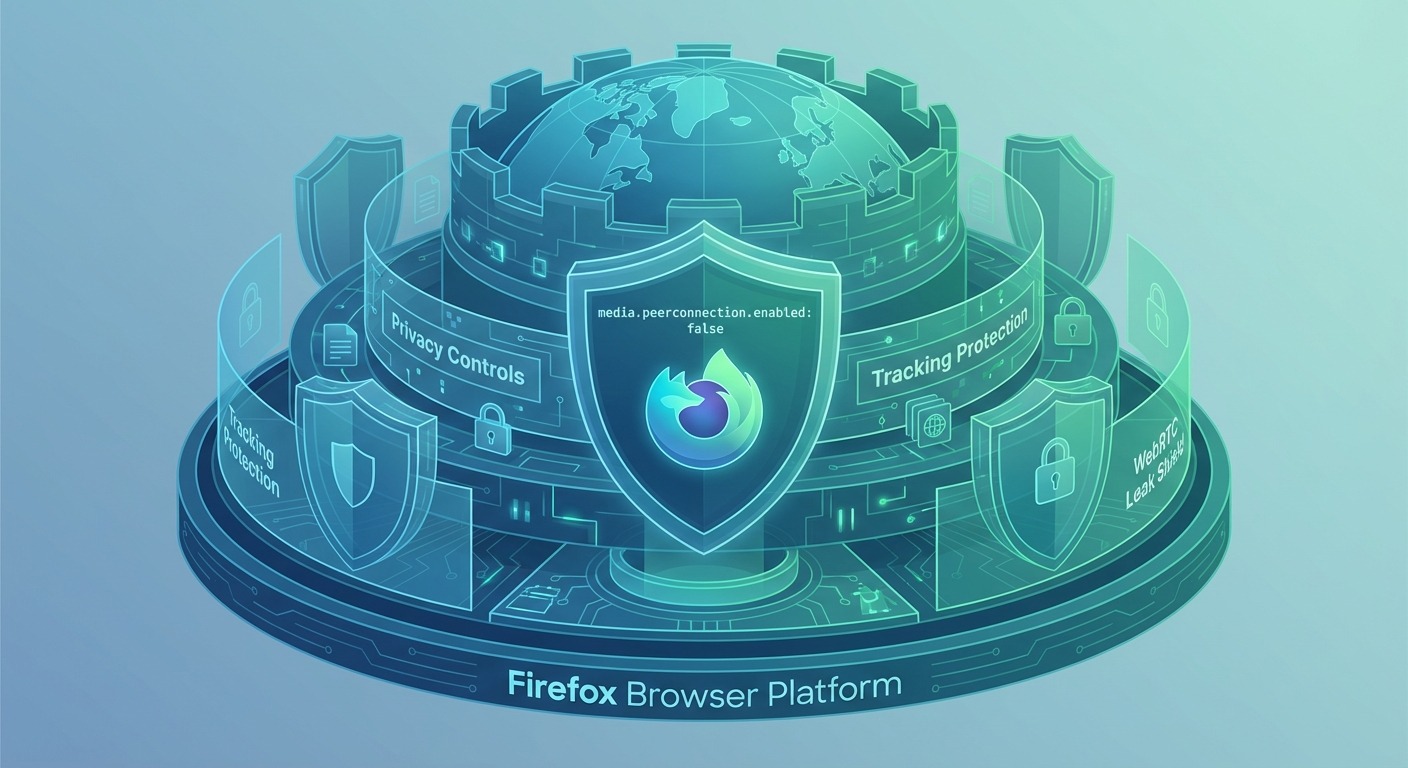
Firefox is the privacy advocate’s browser. Unlike Chrome, Mozilla actually gives you a built-in control to disable WebRTC without needing extensions. It takes about 60 seconds.
Steps to Disable WebRTC in Firefox:
Open Firefox’s config editor:
- Type
about:configin the address bar - Press Enter
- Type
Accept the warning:
- Firefox will show a “Proceed with Caution” message
- Click “Accept the Risk and Continue”
Search for the WebRTC setting:
- In the search bar at the top, type:
media.peerconnection.enabled - You’ll see the setting appear with a value of “true”
- In the search bar at the top, type:
Toggle the setting:
- Click the toggle icon on the right (or double-click the line)
- The value should change to “false”
- The text may turn bold to indicate you’ve changed it from default
Restart Firefox (optional):
- Changes take effect immediately, but restarting ensures everything loads correctly
What This Does
Setting media.peerconnection.enabled to false completely disables WebRTC’s peer connection capabilities. WebRTC APIs will fail silently, preventing any STUN requests from leaking your IP.
Verify the Fix
Visit BrowserLeaks.com/webrtc. You should see a message that WebRTC is not available or disabled. No IP addresses should be visible in the leak test section.
How to Disable WebRTC in Safari (macOS & iOS)
Safari handles WebRTC differently depending on whether you’re on macOS or iOS. Apple’s approach is more privacy-focused than Chrome’s, but WebRTC is still enabled by default.
Safari on macOS:
Enable the Develop menu:
- Open Safari → Preferences (or Settings)
- Go to the “Advanced” tab
- Check “Show Develop menu in menu bar”
Disable WebRTC’s ICE candidate restrictions:
- Click “Develop” in the menu bar
- Go to “Experimental Features”
- Find “WebRTC mDNS ICE candidates” or “Remove Legacy WebRTC API”
- Uncheck it (if it’s checked)
Alternatively, you can:
- Go to Develop → Experimental Features
- Toggle off “WebRTC platform UDP sockets”
The exact naming and location of these options changes with each Safari update, but they’re typically under Experimental Features in the Develop menu.
Safari on iOS/iPadOS:
As of iOS 15 and later, Apple has significantly limited WebRTC leaks on mobile Safari:
- Open Settings → Safari
- Scroll to “Privacy & Security”
- Ensure “Prevent Cross-Site Tracking” is enabled
iOS Safari doesn’t expose your local IP to websites by default, and there’s no manual toggle to completely disable WebRTC. Apple’s mDNS obfuscation handles most privacy concerns automatically.
Verify the Fix
Test at BrowserLeaks.com/webrtc on your Mac or iPhone. You should see either no local IP addresses or obfuscated addresses that don’t reveal your real network configuration.
How to Disable WebRTC in Edge & Other Browsers

Microsoft Edge
Edge is built on Chromium (the same engine as Chrome), so it has the same WebRTC limitations. Microsoft doesn’t provide a native toggle.
Solution: Use the same Chrome extensions:
- Visit the Edge Add-ons store
- Search for “WebRTC Leak Prevent” or “WebRTC Control”
- Install and configure exactly as you would in Chrome
Edge allows Chrome extensions to run without modification, so any solution that works in Chrome works in Edge.
Brave Browser
Brave has built-in WebRTC protection:
- Open Brave Settings
- Go to “Privacy and security”
- Scroll to “WebRTC IP handling policy”
- Select “Disable non-proxied UDP”
This forces WebRTC connections through your proxy/VPN without disabling the feature entirely.
Yandex Browser
Yandex includes WebRTC controls in settings:
- Open Yandex Settings
- Navigate to “Websites” or “Security”
- Find “Protect from IP address leakage through WebRTC”
- Enable it
Opera / Opera GX
Opera and Opera GX (built on Chromium) require extensions:
- Visit the Opera Add-ons store
- Install “WebRTC Leak Prevent” or similar extension
- Configure to disable non-proxied UDP
Why “Disabling” is Actually a Bad Idea

You’ve now disabled WebRTC. Your IP isn’t leaking anymore. Congratulations—you’ve also broken your browser.
Here’s what stops working when you disable WebRTC:
Video Conferencing Tools
- Google Meet throws connection errors
- Zoom web client fails to load video
- Microsoft Teams (browser version) can’t establish calls
- Discord voice channels don’t connect
- Skype for Web shows endless “connecting” messages
Streaming and Gaming
- Peer-to-peer streaming platforms (some sports sites, decentralized video platforms)
- Cloud gaming services that use WebRTC for low-latency streaming
- Screen sharing features in collaboration tools
File Transfer Services
- Browser-based file sharing (Firefox Send alternatives, ShareDrop)
- Torrent clients that run in the browser
- Peer-to-peer messaging apps (Snapdrop, PairDrop)
Other Functionality
- Some VoIP services (business phone systems that use web interfaces)
- Certain real-time collaboration tools (Figma calls, Miro video chat)
- Live customer support chat windows with video options
The Trade-off
You’re faced with an impossible choice:
Option 1: Keep WebRTC disabled
- ✅ Your IP stays private
- ❌ Video calls don’t work
- ❌ You spend hours troubleshooting mysterious connection failures
- ❌ You maintain a mental list of “websites that don’t work for some reason”
Option 2: Re-enable WebRTC when you need video calls
- ✅ Everything works
- ❌ You leak your IP whenever WebRTC is enabled
- ❌ You have to remember to disable it again afterward
- ❌ You’re not protected during the times you forget
Neither option is acceptable for anyone who values both privacy and functionality.
There’s a third option.
The Smarter Alternative: WebRTC Spoofing

Instead of disabling WebRTC, you can make it lie.
How WebRTC Spoofing Works
Think of it this way:
- Disabling WebRTC = Unplugging your phone so no one can call you
- Spoofing WebRTC = Answering the phone but using a voice changer
When a website asks for your IP address through WebRTC:
- Traditional approach: Block the request entirely (break functionality)
- Spoofing approach: Answer with a fake IP that matches your VPN’s location
The website gets an IP address (so WebRTC functions work normally), but the IP it receives is not your real one. Google Meet still works. Discord voice chat still connects. But your actual identity stays hidden.
How This Solves the Problem
WebRTC spoofing gives you the best of both worlds:
✅ Video calls work (Meet, Zoom, Discord all function normally)
✅ Your real IP stays hidden (websites see only your spoofed IP)
✅ No manual toggling (protection is always on)
✅ Consistent browser fingerprint (your spoofed IP matches your VPN location)
The spoofed IP matches your proxy or VPN’s location, so there’s no inconsistency for tracking systems to detect. If your VPN says you’re in Germany, WebRTC reports a German IP. Perfect correlation, zero leaks.
Introducing Chameleon Mode
This is where Chameleon Mode comes in.
Chameleon Mode is an anti-detect browser that handles WebRTC spoofing automatically. It’s designed for anyone who needs to manage multiple online identities (affiliate marketers, social media managers, researchers) but wants the same technology available to regular privacy-conscious users.
Here’s what it does:
- Generates a fake local IP address and public IP address
- Matches the fake IPs to your proxy/VPN’s geographic location
- Allows WebRTC to function normally (so video chat tools work)
- Prevents any STUN requests from revealing your real network configuration
- Automatically updates the spoofed IP when you switch proxies or VPN servers
You don’t need to touch browser config files. You don’t need to install extensions. You don’t need to remember to toggle anything on or off. Chameleon Mode handles it transparently in the background.
Who This Is For
Chameleon Mode is overkill if you just want to watch Netflix anonymously. But if you:
- Work remotely and need video calls while maintaining location privacy
- Manage multiple online accounts that can’t be linked to each other
- Research sensitive topics and don’t want your real identity associated with your browsing
- Operate affiliate sites and need to check your pages from different geographic perspectives
- Test websites from different locations without your real IP contaminating analytics
…then spoofing is the only solution that doesn’t force you to choose between privacy and functionality.
How to Get Started
Chameleon Mode offers a free plan that includes WebRTC spoofing along with other anti-detect features (canvas fingerprint randomization, timezone spoofing, geolocation control).
Download Chameleon Mode: [Insert product link]
Once installed:
- Create a browser profile
- Assign a proxy or VPN connection to that profile
- Chameleon Mode automatically configures WebRTC spoofing to match
Your IP stays hidden. Your video calls work. And you never think about WebRTC leaks again.
Frequently Asked Questions
Should I disable WebRTC?
Only if you never use browser-based video calls and don’t mind troubleshooting connection issues on certain websites. For most people, spoofing is a better solution—it hides your IP without breaking functionality.
Does a VPN hide WebRTC leaks?
Usually no. Most VPN applications don’t block WebRTC at the system level. They only route traffic through an encrypted tunnel, but WebRTC queries happen outside that tunnel by design. You need either browser-level controls (extensions, config changes) or a spoofing solution like Chameleon Mode to prevent leaks.
Some VPN apps (Mullvad, ProtonVPN) include WebRTC blocking as a feature, but you need to enable it manually. Check your VPN’s settings.
Is WebRTC safe to use?
From a security perspective, yes. WebRTC uses encryption and isn’t a malware vector. From a privacy perspective, no—it leaks identifying information that bypasses your anonymity tools. The technology itself is secure; the privacy implications are the problem.
Can websites detect that I’ve disabled WebRTC?
Yes. Websites can test whether WebRTC APIs are available. If they detect that you’ve disabled it, they might flag your browser as suspicious (ironically making you more trackable). This is another reason spoofing is superior—websites see WebRTC working normally but with incorrect data.
What about IPv6 leaks through WebRTC?
IPv6 makes WebRTC leaks worse. Your IPv6 address can’t be hidden behind NAT the way IPv4 addresses are, so it’s more directly identifying. Disable IPv6 at the system level if you’re serious about preventing WebRTC leaks, or use a spoofing solution that handles both IPv4 and IPv6.
To disable IPv6:
- Windows: Network settings → Adapter properties → Uncheck “Internet Protocol Version 6”
- macOS: Terminal →
networksetup -setv6off Wi-Fi - Linux: Edit
/etc/sysctl.conf→ Addnet.ipv6.conf.all.disable_ipv6 = 1
Will disabling WebRTC improve my internet speed?
No. WebRTC itself doesn’t consume bandwidth when not in use. Disabling it won’t speed up your browsing or reduce latency.
Can I whitelist certain sites to use WebRTC?
Some extensions (like WebRTC Control) allow whitelisting domains. You can keep WebRTC disabled globally but allow it on specific sites like meet.google.com. This is a compromise solution if you don’t want to use spoofing but need video calls occasionally.
Final Thoughts
WebRTC leaks are real. They’re not theoretical vulnerabilities that might expose you under specific conditions—they’re actively broadcasting your real IP address to every website you visit right now, regardless of whether you’re using a VPN.
You can disable WebRTC using the methods in this guide. It works, but it breaks things. You’ll be troubleshooting mysterious connection failures and wondering why certain features don’t load.
Or you can spoof it. Make WebRTC function normally while feeding it false information. Get privacy without the trade-offs.
The choice is yours. But now at least it’s an informed choice.
Test your browser at BrowserLeaks.com/webrtc. If you see your real IP address, you have a leak. Fix it.
Protect your identity without breaking your browser. Download Chameleon Mode (Free)

Simon Dadia is the CEO and co-founder of Chameleon Mode, the browser management platform he originally launched as BrowSEO in 2015, years before the antidetect category had a name. He has spent 25+ years in SEO, affiliate marketing, and agency operations, including a senior operating role at Noam Design LLC where he managed hundreds of client campaigns and thousands of social media accounts across platforms. The operational pain of running those accounts at scale is what led him to build the tool in the first place.
Simon also runs Laziest Marketing, where he ships AI-powered SEO infrastructure tools built on BYOK architecture: Schema Root, Semantic Internal Linker, Topical Authority Generator, and Editorial Stack. Father of 4. Based in Israel.